Security is a security application provided by the UGOS Pro system, designed specifically to scan UGOS Pro system settings and software applications. Security offers comprehensive real-time protection and scheduled scan strategies to ensure your system is protected from Trojan and virus attacks, safeguarding both system and data security.
Key Features
-
Utilizes the ClamAV engine to scan and remove viruses from both system files and user files within UGOS Pro.
-
Supports full disk scans, custom scans, and scheduled scans. You can define specific scan strategies to periodically check files within UGOS Pro.
-
When enabled, Real-time Protection monitors newly added or edited files within UGOS Pro, providing continuous security.
-
Scans and identifies suspicious files, with the ability to set default action rules and manage files in the quarantine area.
-
The virus database is automatically updated to address evolving online threats, ensuring that your scan strategies stay up-to-date with the latest protection measures.
-
Provides comprehensive scan logs, with the ability to search by date, severity level, and operator. You can export or clear scan records as needed.
Installation
1. Please go to UGOS Pro > App Center > Utility Tools, select Security, and click “Install”.
2. After installation, directly open the application. You can also launch the service from the application icon in the Main Menu.
Note: After installation, Security is accessible to all administrators by default and invisible to regular users.
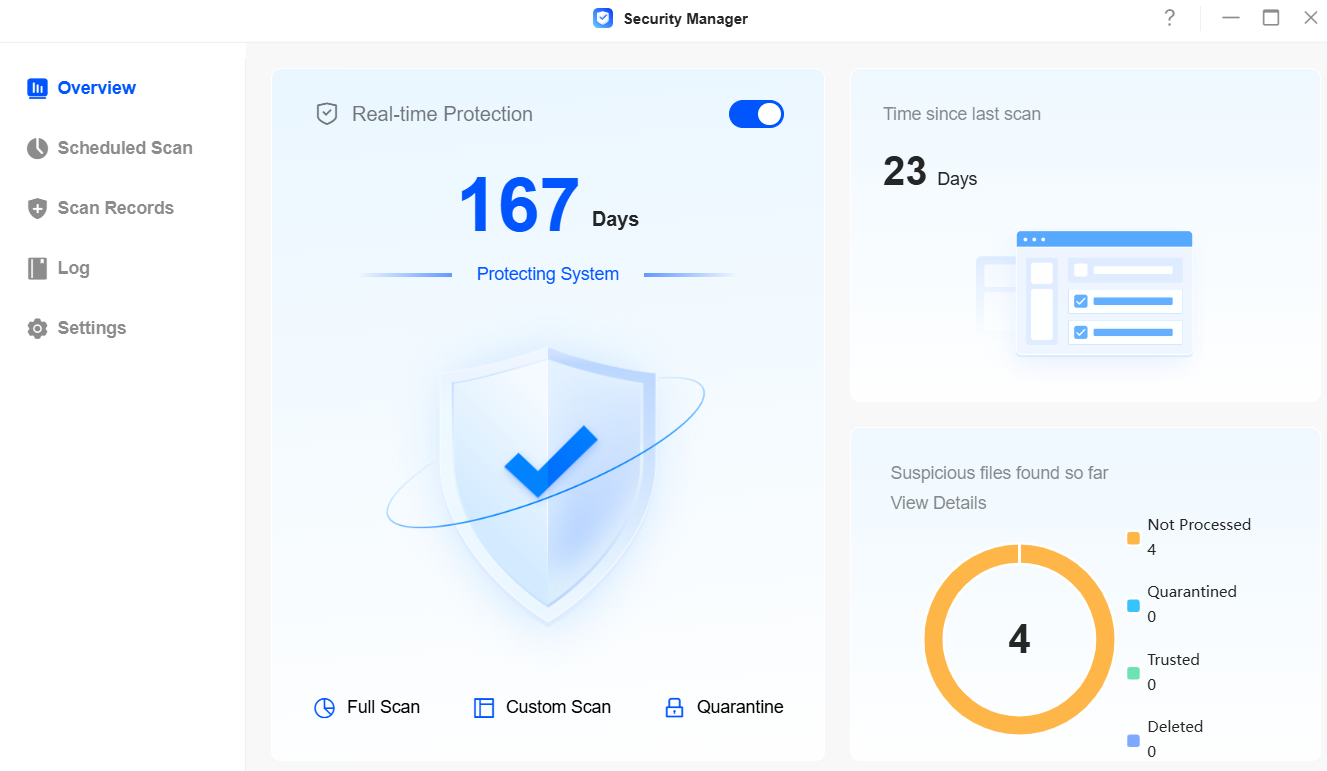
Security Overview
On the Security > Overview page, you can enable real-time protection, view the time interval since the last scan, the total number of suspicious files detected so far, run a full disk scan, customize scans, and access the quarantine zone.
Real-time Protection: Once enabled, it will display the cumulative time of running real-time protection. It automatically identifies and scans newly added or modified files within the device, and handles suspicious files according to default disposal rules.
Full Scan: After running, it will scan and disinfect all files on the disk.
Custom Scan: After launching, you can select the scan range, specify file types to scan, and define the disposal method for suspicious files.
Quarantine Zone: Accessed by navigating to Scan Records > Quarantine Zone. Here, you can manage files in the quarantine zone, including searching, deleting, trusting, or restoring them.
FAQ
Q: Will the ongoing scan tasks be terminated if Security is uninstalled during the scan process?
A: Security Guard can be uninstalled normally, but any ongoing scan tasks will be forcibly terminated. If the Security window is open under the admin account, it will automatically close.