By reading this article, you can configure SMB protocol for efficient file transfer using iPad, iPhone, Windows, macOS devices.
Introduction of SMB
SMB (Server Message Block) service is a network file sharing protocol that is widely used for file access and transfer within a LAN.
Pre-Preparation
Make sure your NAS device is on the same LAN as your computer, mobile phone, etc. and SMB service is enabled.
Enable SMB service
1. Open Greenlink Cloud interface, in [Control Panel] > [File Service] > [Enable SMB Service], click [Apply] to take effect.
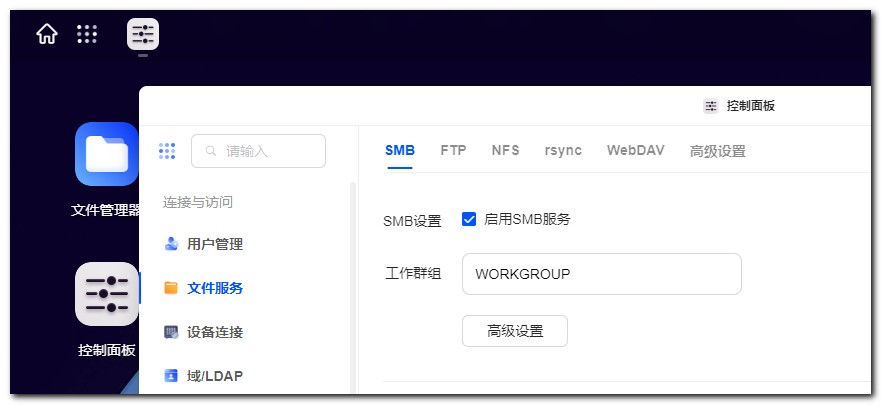
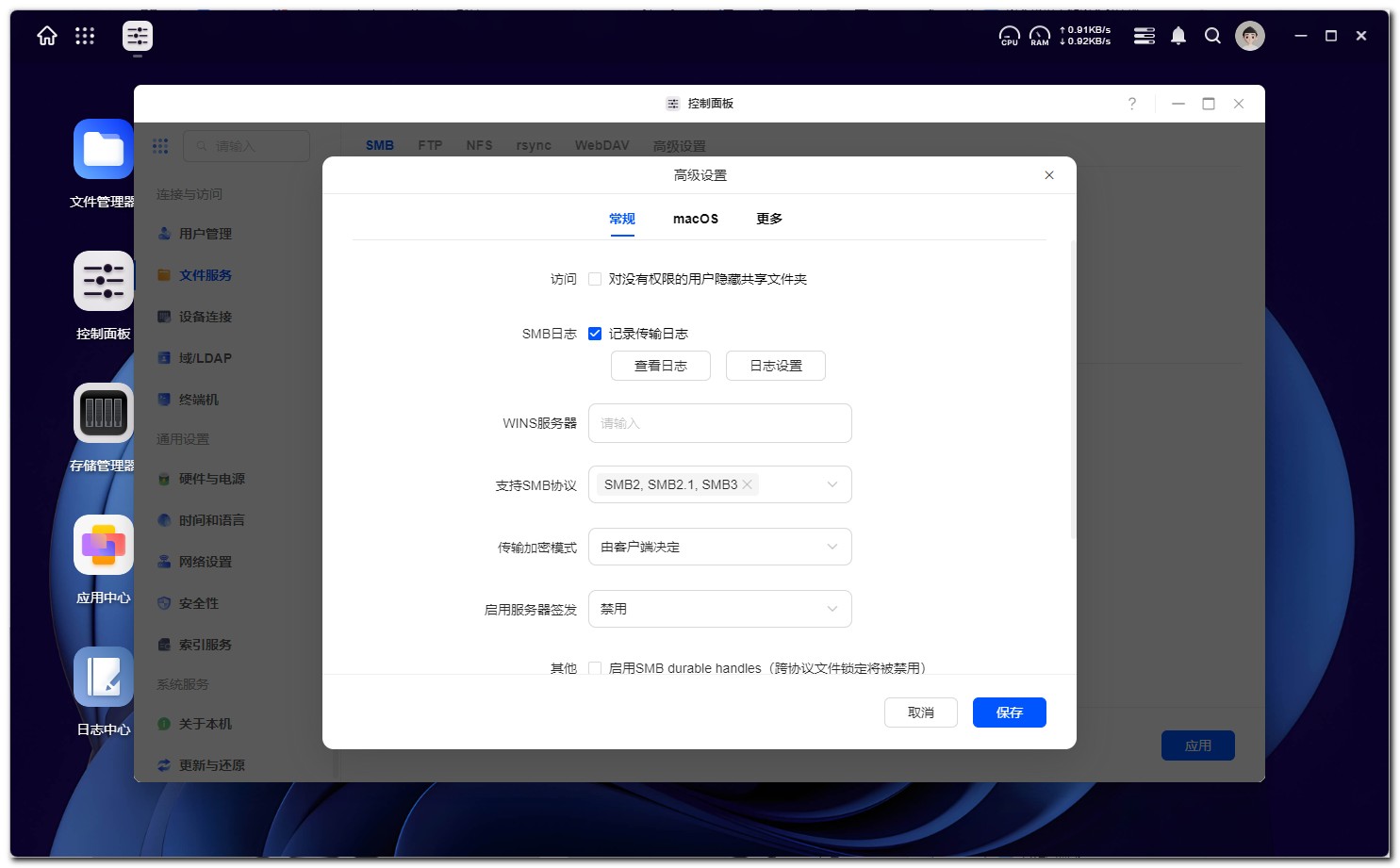
2、According to the needs of [Advanced Settings] and [Workgroups] settings.
3, in the bottom you can find the Windows side and macOS side SMB access address.
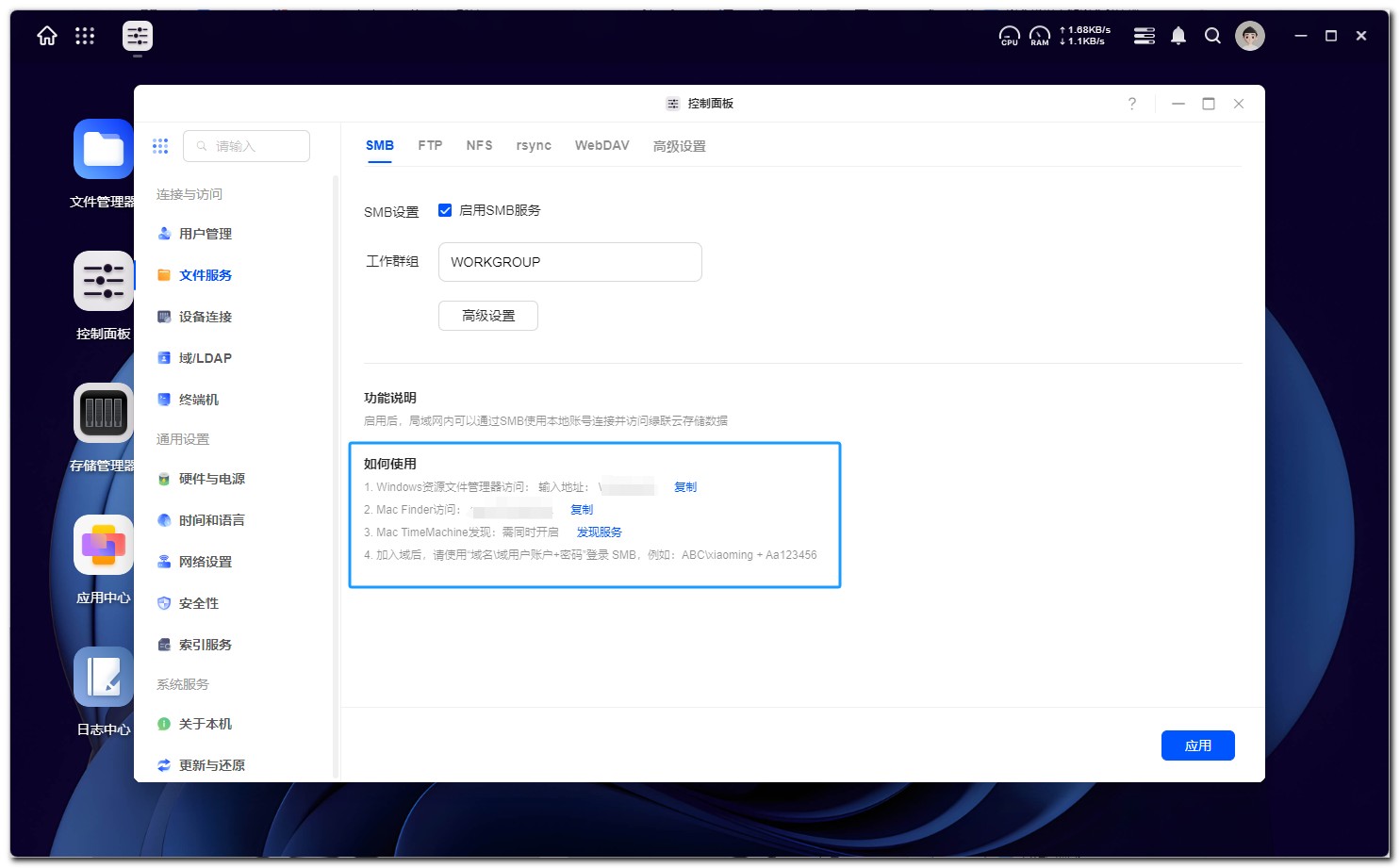
4、Login account and password are your Greenlink Cloud account and password.
To access SMB shared folders on Windows devices
Operation mode 1: Mapping network drive
1. On Windows desktop, open "This PC", click "..." in the upper right corner , and select "Map Network Drive".
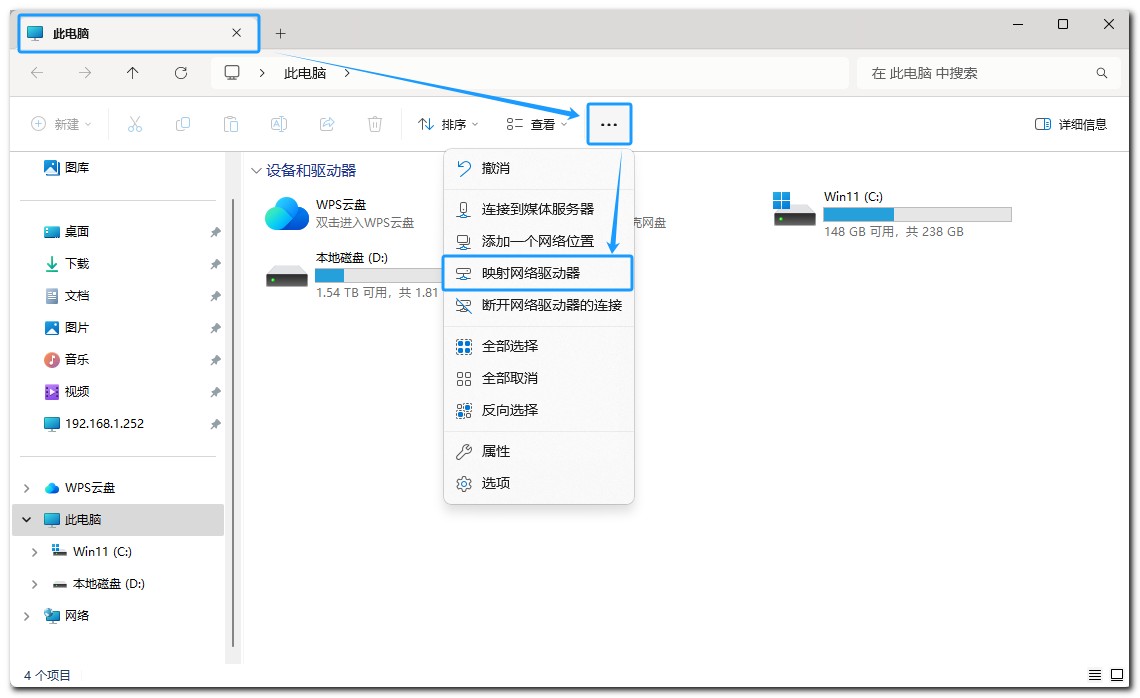
2. Enter the access address of Greenlink NAS in the folder and click "Browse". Find the corresponding device in the pop-up network browsing window.
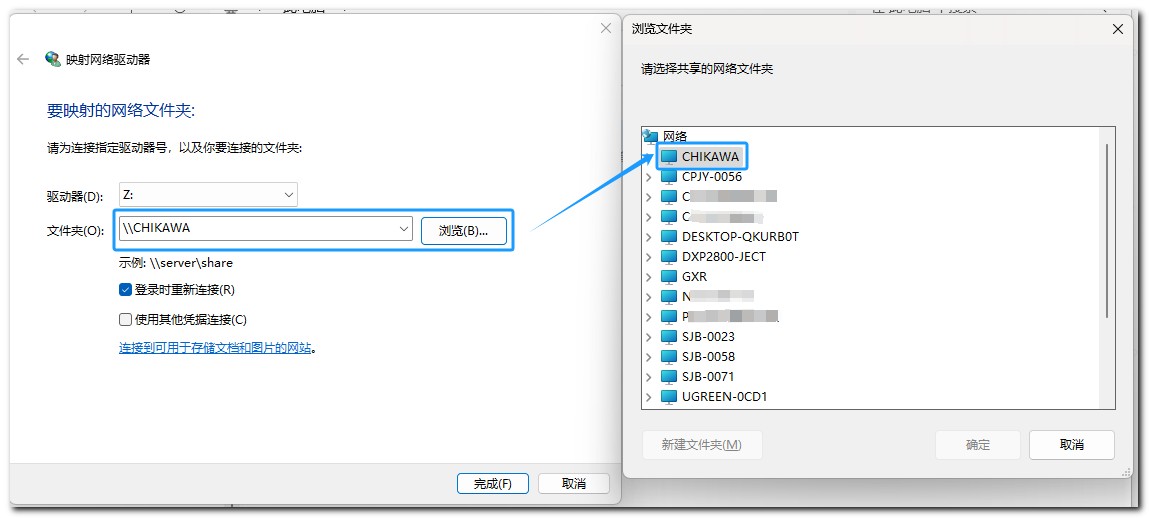
Click the ">" arrow to select the folder to be mapped. In the pop-up window, enter the account and password of Greenlink NAS network service.
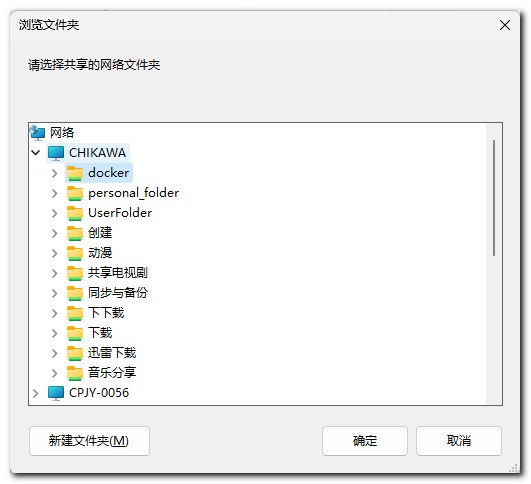
4、Click "OK" and "Finish" after the setting is completed, that is, the mapping is complete.
Operation mode 2: Create shortcut
1. Right-click on the Windows desktop to create a new shortcut, enter the access address of Greenlink NAS, and click "Browse".
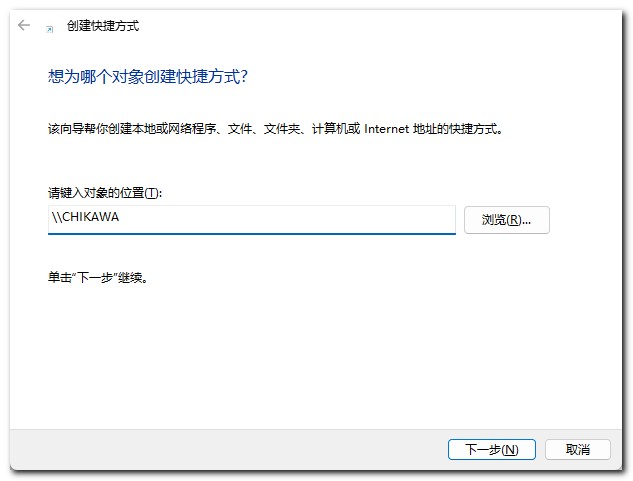
2、Find the corresponding device in the pop-up network browsing window.
Click the ">" arrow to select the folder to be mapped. Click "OK" > "Next", enter the name of the shortcut, you can see the mounted Greenlink NAS file on the desktop.
Operation mode 3: Direct access
On Windows desktop, open [This PC], enter the SMB access address of Greenlink NAS in the address bar, and press Enter to see all the mapped files.
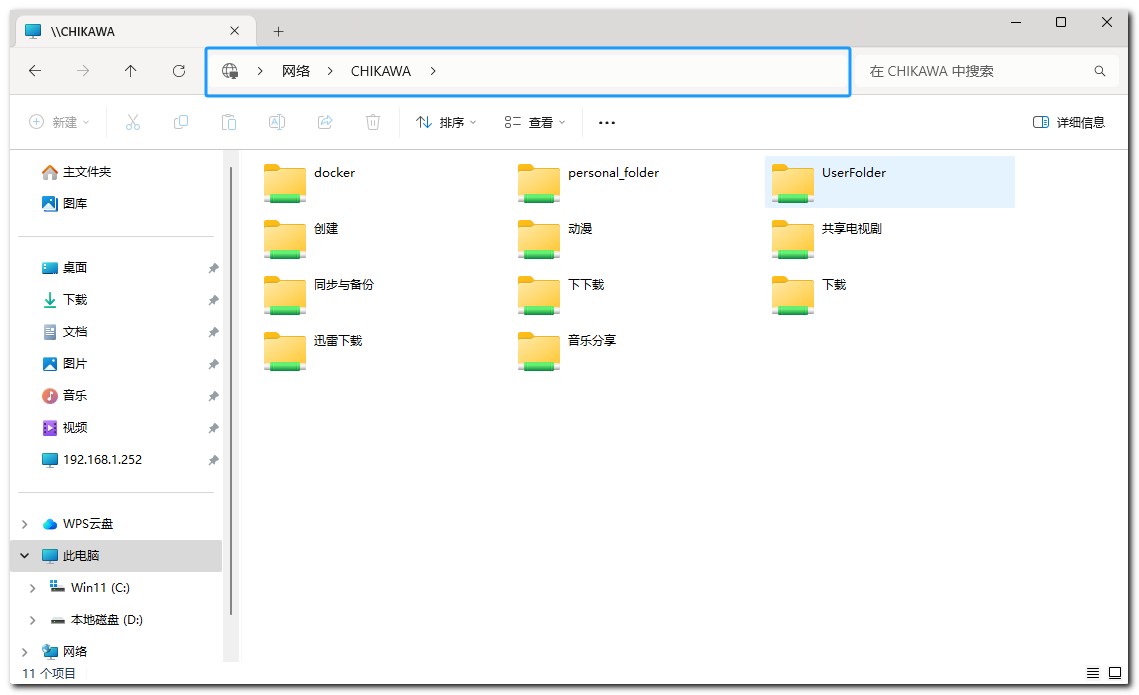
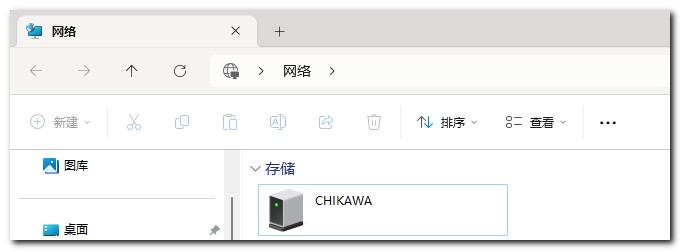
Operation mode 4: Access through network
Open [Network], find the NAS device in the same LAN, double-click to enter your account password, and log in to access the NAS files.
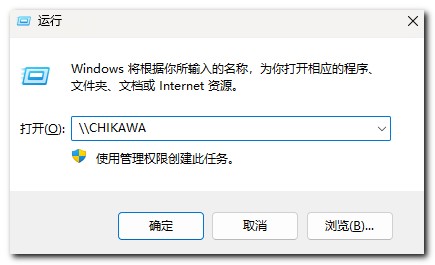
Operation mode 5: Run command access
Hold down the shortcut Win + R to enter the Run box, enter the SMB access address and press Enter to see all the mapped files.
Access SMB shared folders on macOS devices
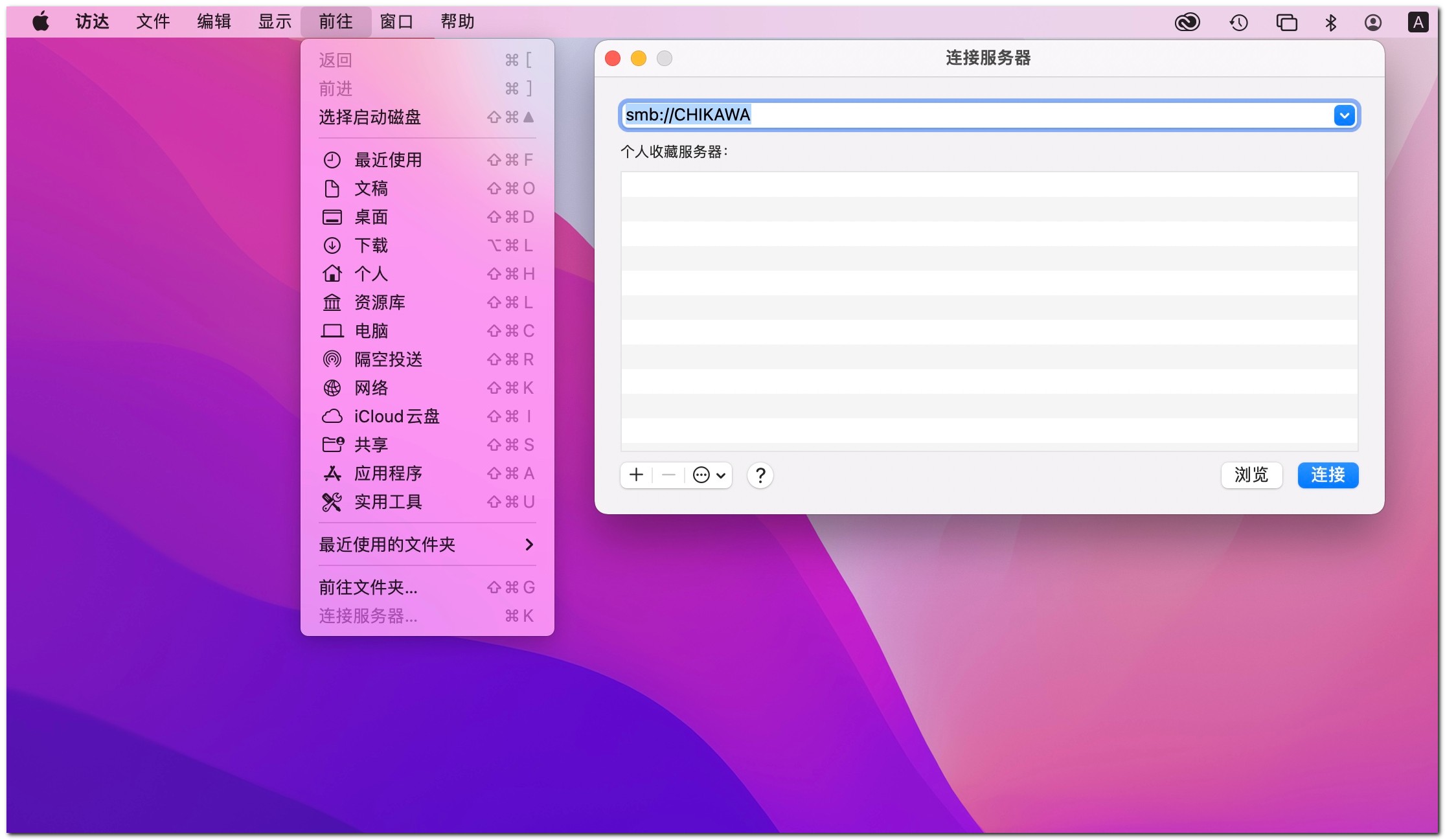
1, Open [Access] > [Go to] > [Connect to Server].
2, in the pop-up window, enter the SMB address of Greenlink NAS network service, such as "smb://IP address"
3, click [Connect], enter the account password, you can see the folder that can be mounted.
4、Click the file can be accessed and edited.
For easy access, you can click [Preferences] in Visita , in [General] > [Connected Servers], you can see the mounted shared folder on macOS desktop.
Accessing SMB shared folders on iOS devices
1, open [File], click "..." in the upper left corner , select [Connect to Server].
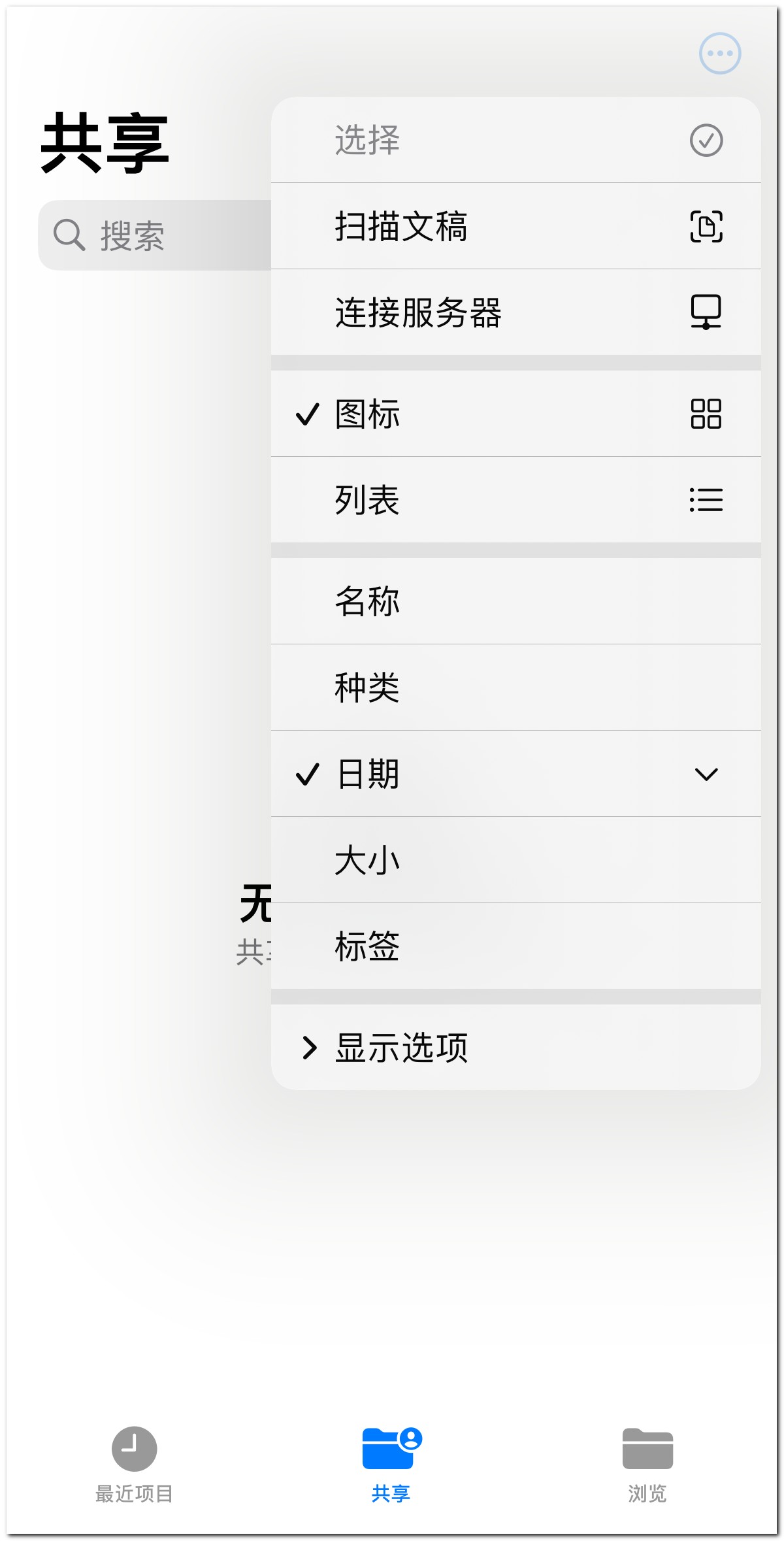
2、Enter the access address of the NAS device and click [Connect].
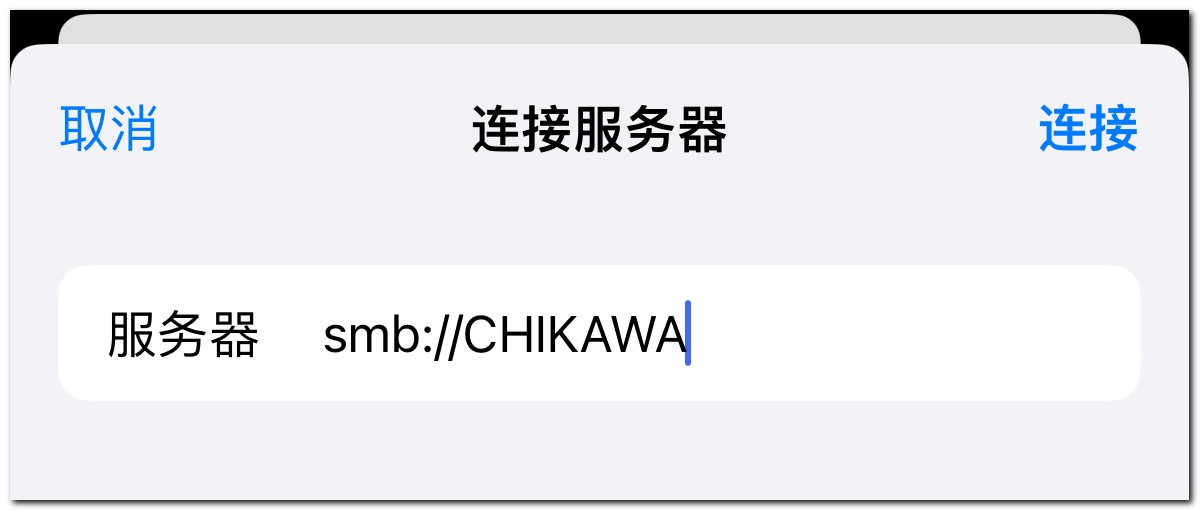
3、Select 【Connect Identity】, and enter the user name and password of NAS.
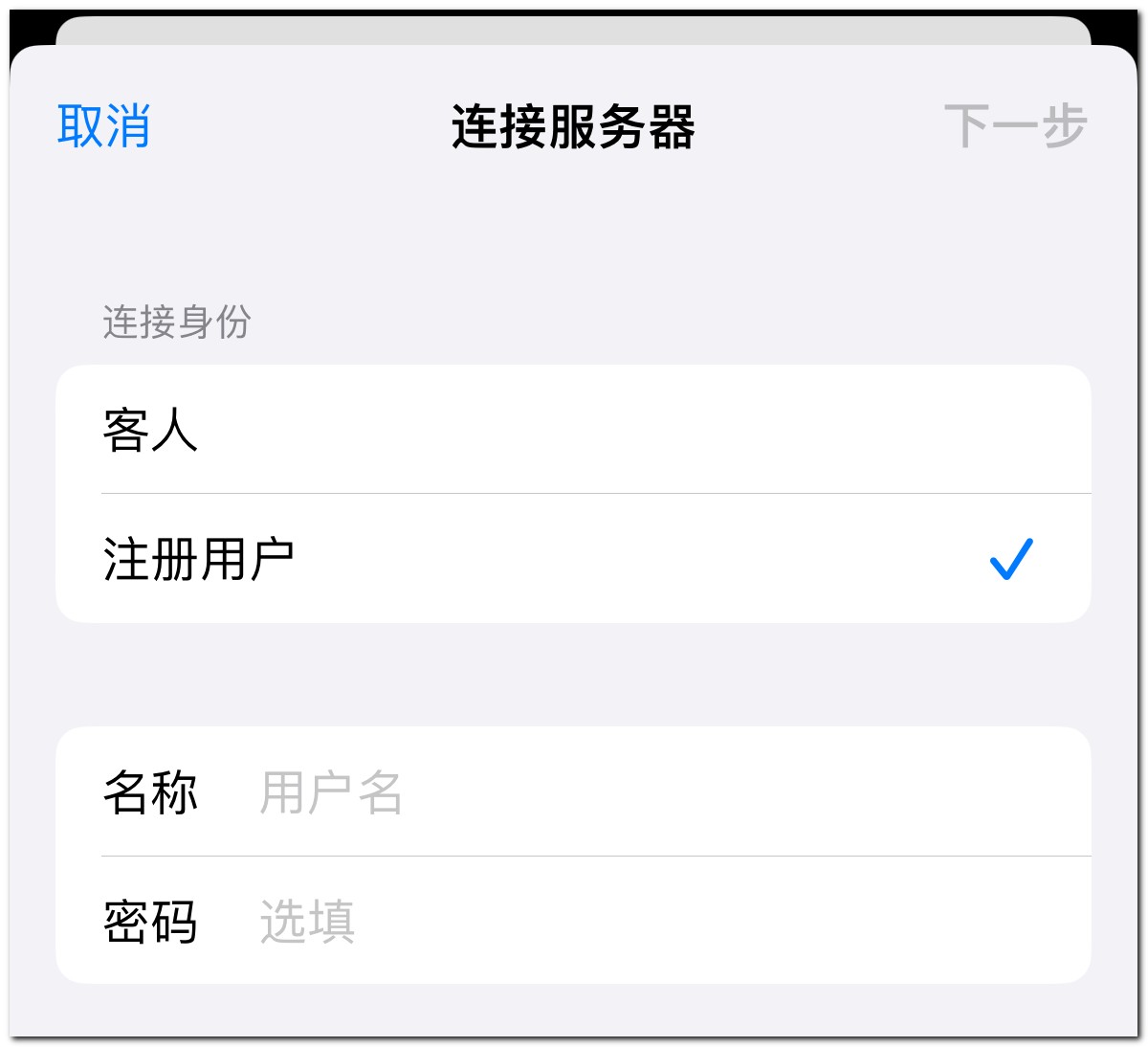
4、After successful connection, you can see the shared folder of NAS in [File], click to access and transfer files.
With the above steps, you can easily share and transfer files between different devices, which not only improves the convenience of accessing files, but also ensures efficient and stable file transfer. Whether it is Windows, macOS or iOS devices, you can achieve seamless file access and management via SMB protocol.