Security Manager
Security Manager is a security application offered by the UGOS Pro system, designed specifically to analyse UGOS Pro system settings and software applications. It provides comprehensive real-time protection status and scheduled scanning policies, ensuring that your system remains protected against malware and viruses, safeguarding system and data security.
Key features:
-
Utilises the Clamav virus scanning engine to detect and remove viruses from system or user files in UGOS Pro.
-
Supports full disk scans, custom scans and scheduled scans, allowing custom scanning strategies for regular file scanning within UGOS Pro.
-
Activate "Real-time protection" to continuously monitor recently added or edited files in UGOS Pro.
-
Identify suspicious files and enable the definition of predefined treatment rules and the management of files in the quarantine zone.
-
Automatically update the virus database to deal with evolving cyber threats, ensuring scanning strategies remain at the cutting edge.
-
Provides detailed scan logs with search capabilities by date, level and operator, allowing scan logs to be exported or cleaned.
Installation and use
1. Go to UGOS Pro > Application Centre > Utility Tools, select Security Manager and click Install.
2. After installation, open the application directly. You can also start the service from the application icon in the Main Menu.
Note: After installation, Security Manager is accessible to all administrators by default and invisible to normal users.
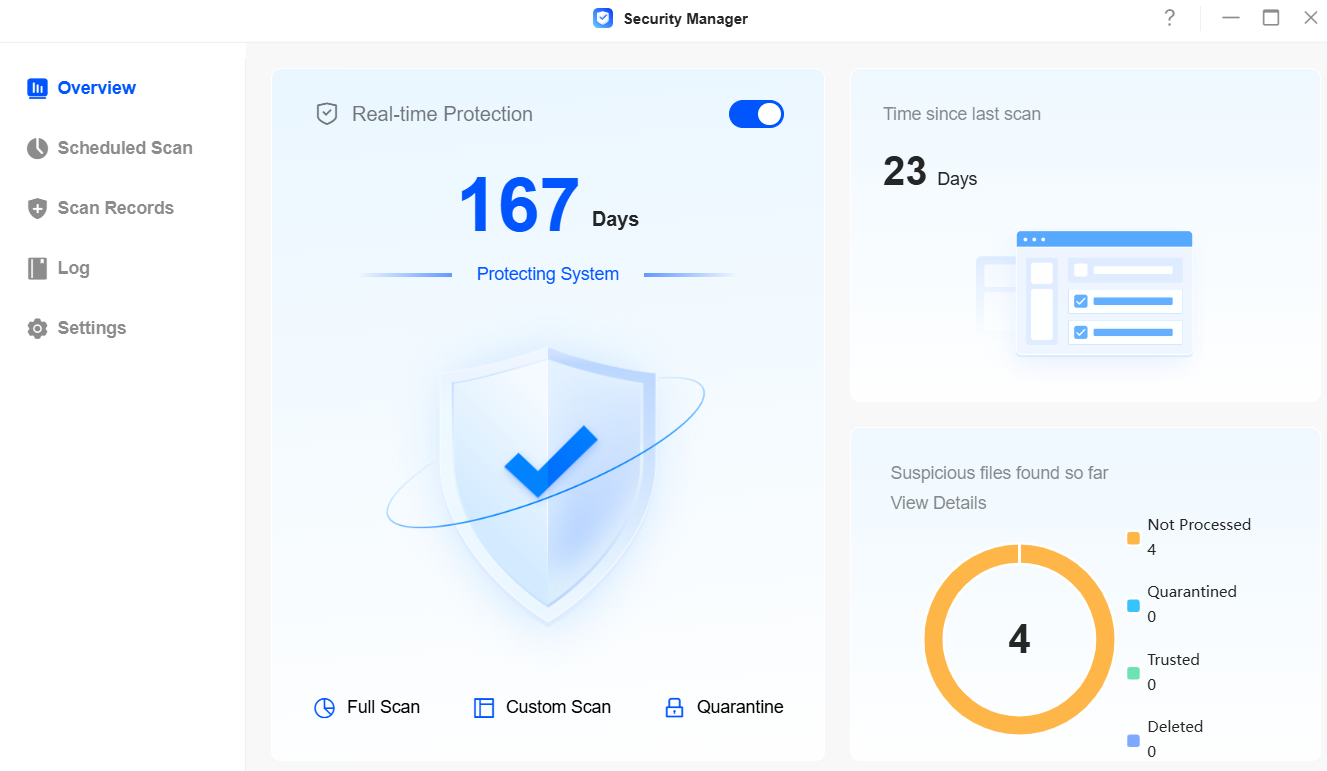
Security Manager overview
On the Security Manager > Overview page, you can activate real-time protection, see the time interval since the last scan, the total number of suspicious files detected so far, run a full disk scan, customise the scans and access the quarantine zone.
Real-time protection: Once activated, it displays the accumulated time the real-time protection has been running. It automatically identifies and analyses recently added or modified files on the device and treats suspicious files according to predefined deletion rules.
Full disc scan: Once run, the scan and disinfection of all files on the disc.
Customised scan: Once launched, you can select the scan interval, specify the types of files to be scanned and define the method for deleting suspicious files.
Quarantine zone: Accessed by navigating to Scan logs > Quarantine zone. Here you can manage the files in the quarantine zone, including searching for, deleting, trusting or restoring them.
FREQUENTLY ASKED QUESTIONS
Q: If I uninstall Security Manager while a scan strategy is in progress, will the ongoing scan task be terminated?
A: Security Manager can be uninstalled as normal, but the scan task will necessarily be terminated. If an administrator's Security Manager window is open, it will close automatically.
修改后的葡萄牙语,这边尝试修改后显示的内容应该是修改后的内容