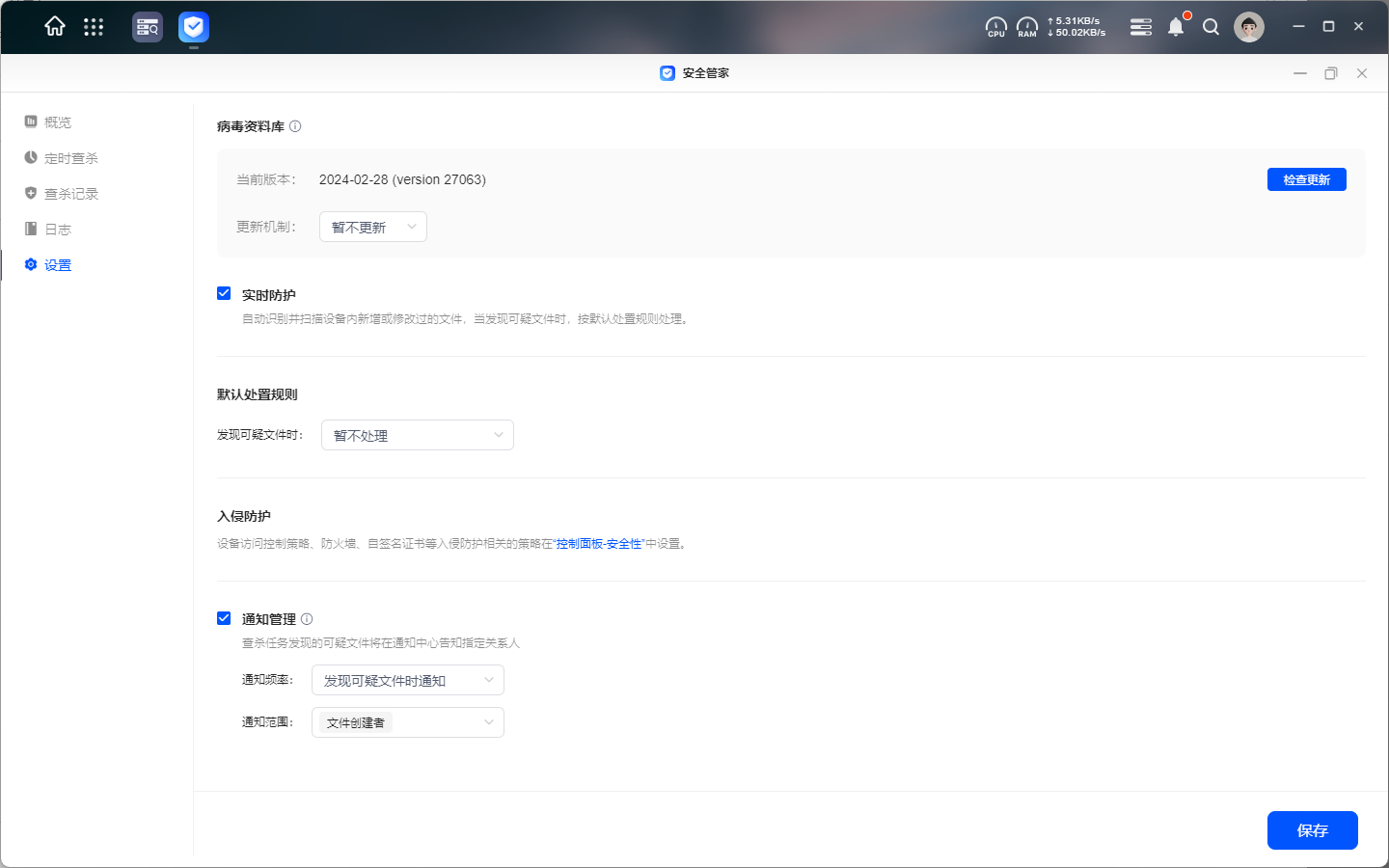
Virus database
Security Manager utilises the virus database of the Clamav virus scanning engine to ensure that your system has the latest virus protection. Below are the functions for managing and updating the virus database:
-
Automatic update: After ticking the "Automatic update" option, the system will check and update the virus database periodically. When there is a new version, the system will automatically activate the update to ensure that the database is always up to date.
-
Version information: You can check the version information of the current virus database to find out the latest status of the virus protection data used by the system.
-
Manually check for updates: In addition to automatic updates, you can manually check the virus database for updated versions at any time. If an updatable version is recognised, you will be asked to update it.
-
Update policy: You can customise the frequency of automatic updates, choosing to check and update automatically on a daily or weekly basis to ensure that the system maintains the virus database according to your needs.
Activating automatic updates
In the Security Manager settings, tick the "Automatic updates" option.
In the Automatic update option, you can choose to check and update daily or weekly to ensure that the system maintains the virus database regularly.
The system will automatically check and update the virus database at the frequency you set (daily or weekly).
Manually check for updates
By clicking on the "Check for updates" button, the system will manually check for available updates to the virus database.
If a new version is available, you can choose to update immediately or postpone the update.
What is ClamAV?
ClamAV (Clam AntiVirus) is open source antivirus software designed for email gateways, but its functionality has been expanded to include file system scanning, real-time protection and many other uses. It is maintained and developed by the ClamAV community to provide an efficient and free virus scanning service.
Main features
-
Virus detection: ClamAV is able to detect and remove a wide range of malware, including viruses, trojans, worms, adware and spyware. It uses an extensive virus database that is continuously updated to deal with the latest cyber threats.
-
Multi-platform support: ClamAV supports multiple operating systems, including Windows, Linux and macOS, providing cross-platform protection.
-
Email analysis: Designed for email gateways, it effectively analyses and filters malware in emails to prevent the spread of malicious emails.
-
Real-time protection: Supports the real-time scan function to monitor new and modified files on the file system to detect and deal with potential threats in time.
-
Personalised scanning: Users can customise the scanning scope and strategy according to their needs, such as scanning the entire disk, scanning specific folders, etc.
Application of ClamAV on UGOS Pro
In the UGOS Pro system, the ClamAV virus scanning engine is used to scan system files and user files on Greenlink NAS devices to ensure device and data security. Here are the specific applications of ClamAV in UGOS Pro:
-
Virus scanning: Use the ClamAV scan engine to perform regular or real-time virus scans on files on Greenlink NAS devices to ensure that system and user files are free of malware.
-
Real-timeprotection: Real-time monitoring and scanning of new or modified files on the device, timely detection and processing of suspicious files, providing complete protection.
-
Automatic updating: ClamAV's virus database can be updated automatically to ensure that virus detection data is always up-to-date and capable of dealing with ever-changing network threats.
Real-time protection
With "Real-time protection" enabled, Security Manager automatically identifies and analyses new or modified files on the device and, when suspicious files are found, they are dealt with according to predefined elimination rules.
Predefined rules
When you find suspicious files, you can perform the following actions: leave them unattended and move them to the quarantine area (quarantined files will be inaccessible and inoperable).
Protection against intrusions
Policies related to intrusion prevention, such as device access control policies, firewalls, self-signed certificates, etc., are defined in the "Control Panel - Security". Click for more details on security settings.
Notification management
When enabled, suspicious files found by the search and delete tasks will be notified to the specified parties in the notification centre.
-
Notification frequency: You can choose to be notified at the end of a deletion task or when a suspicious file is found, or you can choose not to be notified at all. You can choose to be notified at the end of a scan task or when suspicious files are found, or you can choose not to be notified at all.
-
Notification scope: By default, the notification will be sent to the creator of the deletion task and you can also define whether you want to notify all administrators or file owners (several options are supported).